Extracting Text From JPG and PNG Files: Which Export Reads Cleanest
Whether you export as JPG, PNG, or WebP changes how well text extraction works — but not as much as how large you exported it. What actually matters, and why.
When people ask whether they should export a design as JPG or PNG before pulling the text out of it, the honest answer is that the file extension matters far less than they expect. What actually decides whether text extraction succeeds is how legible the lettering is in the final pixels. Format affects that, but only indirectly — and one format affects it much more than the others.
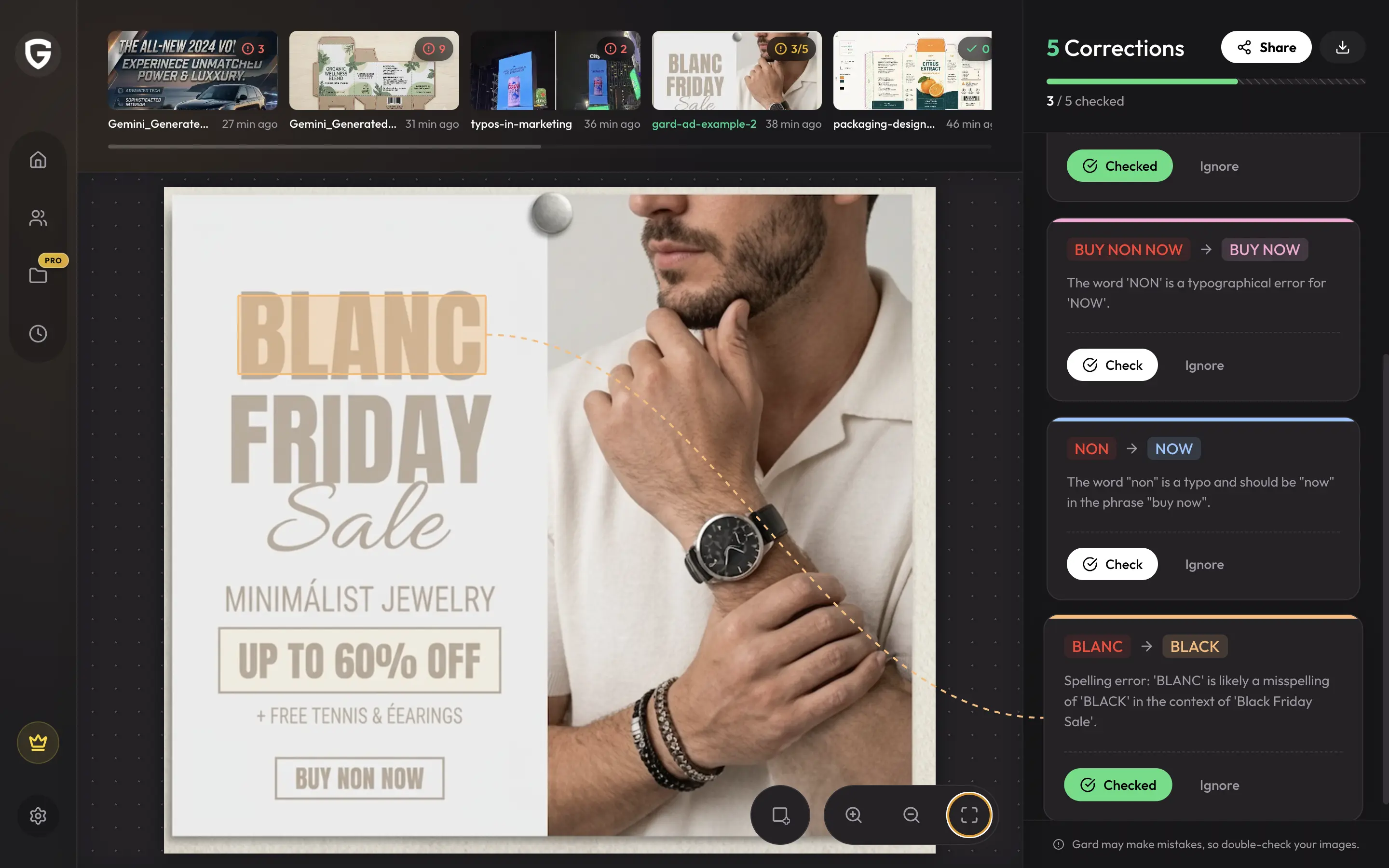
Worth framing before the detail, since this blog is mostly about proofreading rather than file formats. Gard reads the copy inside flat images — packaging designs, infographics, marketing graphics, email images — and catches spelling, grammar, and punctuation errors directly on the artwork, without anyone retyping or extracting a thing. Export quality matters to that job for exactly the same reason it matters to extraction: if the lettering is too degraded to read, nothing downstream can check it either. So everything below applies whether you are pulling the words out or having them proofread in place.
Why JPG can work against you
JPG uses lossy compression. It throws away image data to save space, and it is tuned for photographs — gradual changes in tone across a photo. Text is the opposite: hard, high-contrast edges between a letter and its background. Those edges are exactly what JPG compression handles worst.
The result is ringing or haloing around characters, and at low quality settings small type starts to smear into the background. A headline at 90pt will survive almost any compression. A six-point legal line at 60% JPG quality may not.
Why PNG and WebP tend to read more cleanly
PNG is lossless. Every pixel you exported is the pixel that gets read, so letterforms keep their crisp edges no matter how small the type is. For flat artwork with text — packaging dielines, infographics, UI, anything with sharp edges and solid colour — PNG is the safer export.
WebP can be either lossy or lossless depending on the export setting. Lossless WebP behaves like PNG at a smaller file size. Lossy WebP behaves more like JPG, though generally it holds edges together better at equivalent quality.
Resolution matters more than format
If you change one thing, change this. Text recognition works from the pixel height of the characters, not from the DPI recorded in the file. A 1200px-wide export of a poster gives every character roughly twice the pixels of a 600px-wide export of the same poster, and small type is where that difference decides the outcome.
A large, lightly compressed JPG will usually beat a small PNG. Size first, then format.
Practical export settings
- Export at the largest size you reasonably can. Downscaling destroys small type faster than anything else on this list.
- Prefer PNG for flat artwork with text. Packaging, infographics, ads, email graphics, UI captures.
- If it has to be JPG, keep quality high. Around 90% and above; the file-size saving below that is rarely worth the legibility cost.
- Screenshot at native resolution. Capture the actual pixels rather than photographing a screen.
- Avoid re-saving repeatedly. Every JPG round trip compounds the artefacts from the last one.
Extraction is the start, not the finish
A clean export gets you an accurate transcript. It tells you nothing about whether the copy in that transcript is right. Those are two different jobs, and the second one is where the expensive mistakes live — a wrong price on packaging, a misspelled product name across a campaign, a broken URL in an email banner.
That second job is the one Gard was built for, and it works straight from the exported image — no extraction step, no copy-paste into a separate checker. It flags each error directly on the artwork, so you see the line the mistake is on rather than a detached list of words. A clean export helps here for the same reason it helps extraction: legible lettering is what makes the copy checkable at all. If you only need the words themselves, the image-to-text tool is free.
Related reading: how to copy text from an image and how to proofread images.
Disclaimer: Gard provides automated design proofing powered by advanced AI. While highly accurate, we advise users to always conduct a final manual review of high-stakes business, medical, or legal graphics before sending to production.