How to Copy Text From an Image Without Retyping a Single Word
Extracting text from an image takes about ten seconds. Knowing which parts of the result to double-check — and why extraction isn't proofreading — is the part that matters.
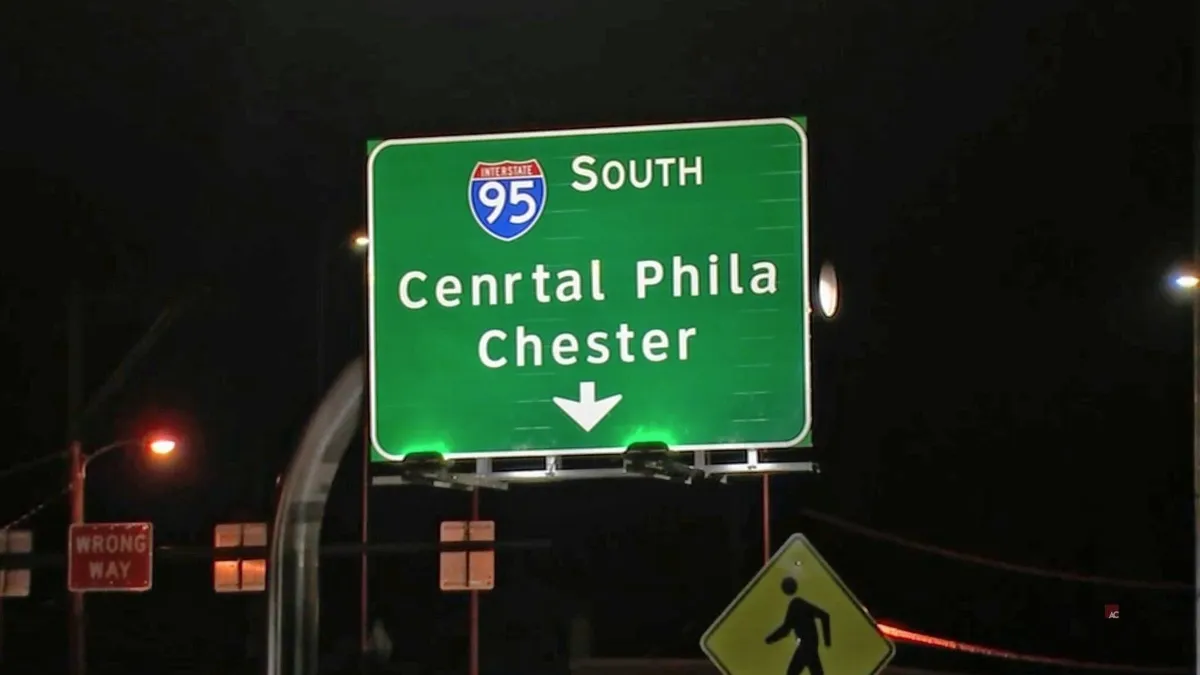
Text inside an image is not text. It is pixels arranged in the shape of letters, which is why your cursor slides straight over a headline in a packaging render or an email banner without selecting anything. To get those words back you have to extract them — run the image through OCR, which reads the shapes and returns characters you can actually copy.
This is a short, practical guide to doing that well, and to the step most people skip afterwards.
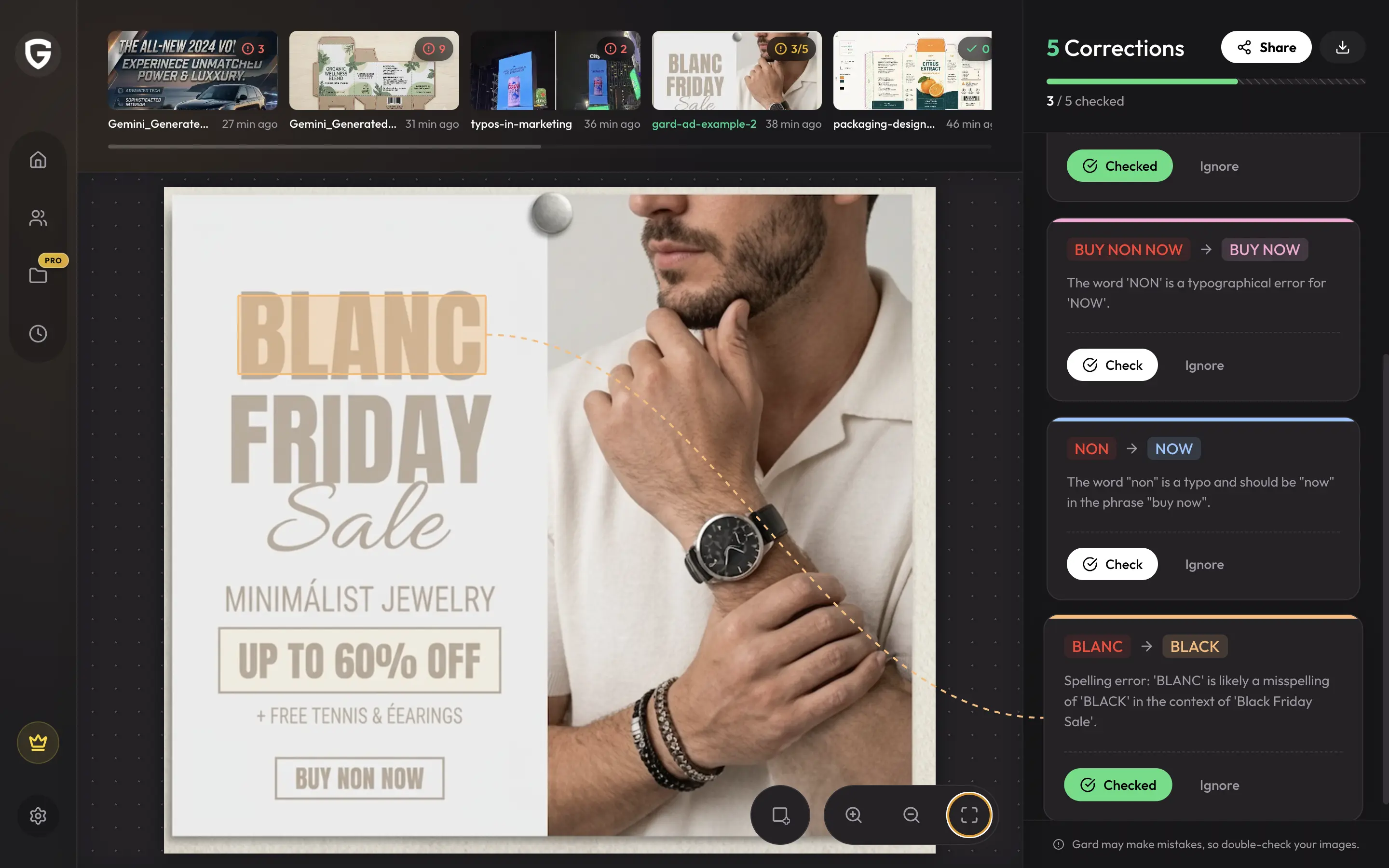
One thing worth setting straight first, because these two jobs get confused constantly. Gard is a proofreading tool. It reads the copy rendered inside packaging designs, infographics, marketing graphics, and email images, and flags spelling, grammar, and punctuation errors on the artwork itself — no extraction required, because it checks the words exactly where they sit. Pulling text out of an image is the separate, simpler job of getting those words somewhere else, and that is what this guide is about.
The fastest way to copy text from an image
- Open the image-to-text tool and upload your file, or paste a direct link to it.
- Let the extraction run. What comes back is plain, selectable text.
- Read it against the original image before you use it. This takes seconds and saves the errors described below.
- Copy it wherever it needs to go — a document, a translation brief, a spellchecker.
Copying from a picture versus a screenshot
Both are flat images, so the same extraction works on either, but they fail in different ways.
- Screenshots are usually the cleanest source. The lettering is crisp, evenly lit, and perfectly square to the frame.
- Photos of printed material — a label, a poster, a leaflet on a desk — carry angle, shadow, and curvature. Shoot straight on, get even light, and fill the frame with the text.
- Design exports sit in between. A clean render reads well; a heavily compressed one can smear the small print.
What to check before you reuse the copy
OCR is very good and not perfect. The mistakes it makes are predictable, and they cluster in exactly the places that hurt most:
- Numbers. Prices, dates, percentages, and phone numbers. A misread digit looks completely plausible.
- Proper nouns. Brand names, product names, and people's names have no dictionary to fall back on.
- Lookalike characters. Capital I, lowercase l, and the digit 1. Zero and capital O.
- Small print. Legal lines and ingredient lists set at the smallest size on the artwork.
Read those four things against the original every time. Everything else you can generally trust.
The step most teams skip
Extracting text tells you what the image says. It does not tell you whether what the image says is correct. Those are separate jobs, and conflating them is how a typo reaches a print run.
OCR transcribes. Proofreading judges. If you copy text out of a packaging design and paste it into a spellchecker, you have moved the words into a tool that can assess them — but you have also left the design behind, so you lose the context that tells you which line the error is on.
That is the gap Gard was built to close, and it is worth saying plainly: for proofreading, you never have to extract anything. Gard reads the copy straight off the flat image and marks each spelling, grammar, and punctuation error in place, on the artwork, so you see the line it sits on rather than a detached list of words. Extraction is for when you want the copy elsewhere. Proofreading is for when you need the copy right. For more on why writing tools cannot do this directly, see can Grammarly check images?
Copy the words out, then check them
Pulling text out of an image is a solved problem and takes about ten seconds. The part worth your attention is what you do with the text afterwards. Extract it, spot-check the numbers and names, and then make sure someone — or something — has actually proofread the copy before the work ships.
Try the image-to-text tool — free, no credit card. And if the real question is whether the copy is correct rather than what it says, skip the extraction and run the image through Gard instead.
Disclaimer: Gard provides automated design proofing powered by advanced AI. While highly accurate, we advise users to always conduct a final manual review of high-stakes business, medical, or legal graphics before sending to production.