How to Proofread an Image: A 7-Step Checklist for Final Graphics
Spellcheck can't see pixels. A practical 7-step workflow to proofread ads, banners, and packaging exports before they go live.
Quick answer
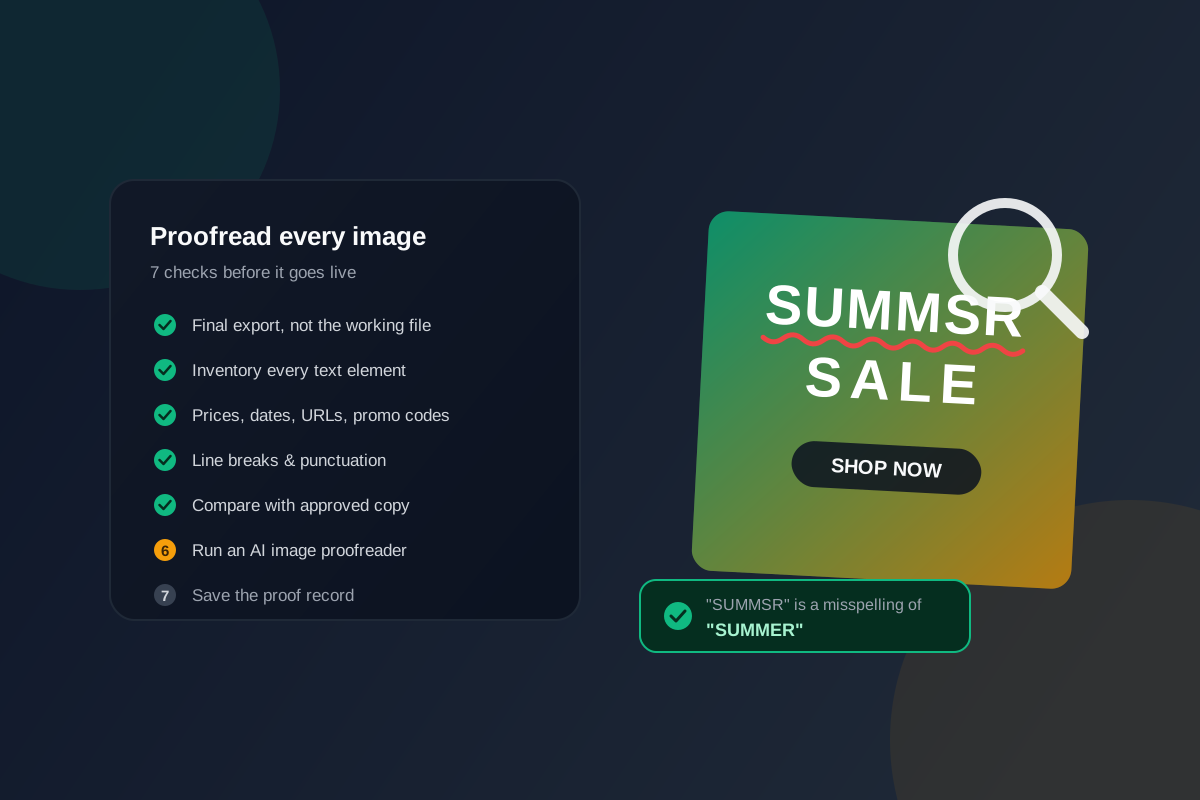
To proofread an image, review the final export, inventory every text element, verify names and numbers, compare it with approved copy, run an automated image check, complete a human context pass, and save the reviewed version. The checklist below explains each step.
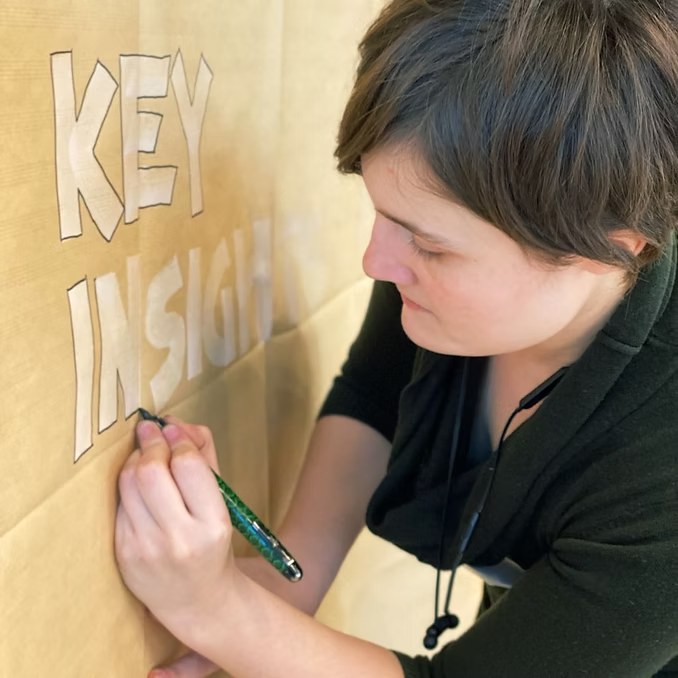
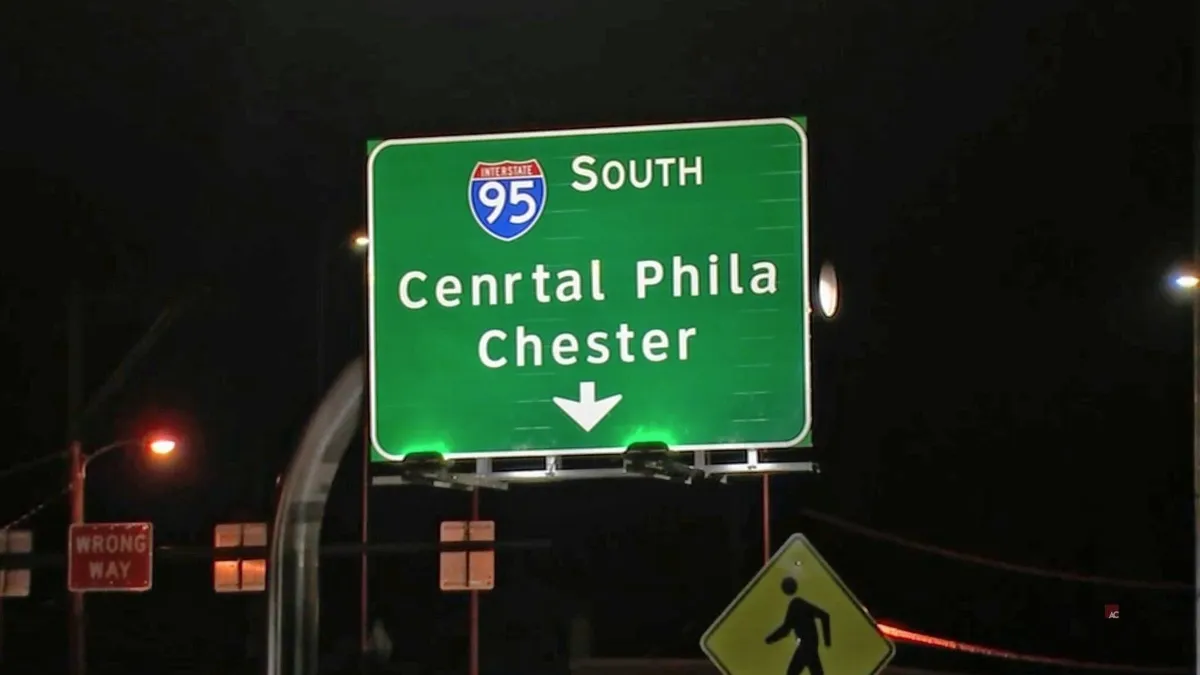
Proofreading images is a different job from proofreading a document. In a doc, your word processor underlines mistakes as you type. In a finished graphic — an ad export, a banner, a package render — the text is pixels, and no spellchecker underlines pixels. That is why so many typos survive three rounds of approvals and still make it onto a billboard.
This guide gives you a repeatable 7-step workflow to proofread any image before it goes live, the specific errors to hunt for, and the tools that automate the boring parts. It works for a single Instagram ad or a folder of two hundred localized banners.
Why proofreading images is harder than proofreading text
- No red underline. Once copy is rendered into a JPG or PNG, document checkers can no longer read it. (We cover this blind spot in depth in Can Grammarly check images?)
- Design camouflages errors. All caps, display fonts, tight tracking, and colored backgrounds make misspellings look intentional.
- Copy gets re-typed. Approved text is often manually re-entered in Figma, Photoshop, or Canva, and every re-type is a chance to introduce a fresh error.
- Familiarity blinds you. By the fifth revision, everyone on the team reads what the headline should say, not what it says.
Step 1: Proof the final export, not the working file
Always review the exact file that will be published — the exported JPG, PNG, or print PDF — not the design document it came from. Exports introduce their own problems: clipped text boxes, missing fonts substituted at render time, cut-off descenders, and stale layers. If the asset gets re-exported after a revision, it goes back through the check.
Step 2: Inventory every text element
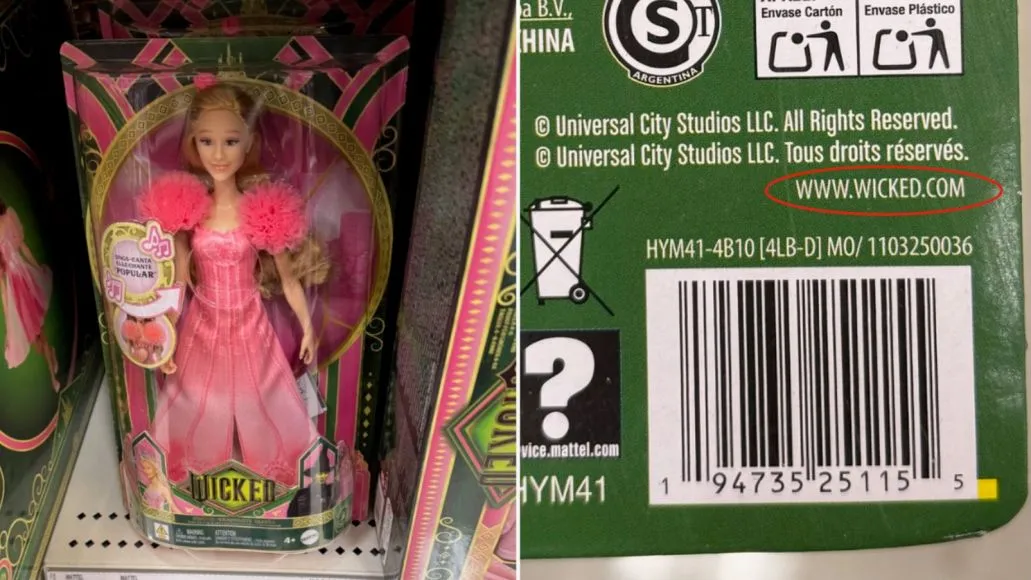
Scan the image systematically — top to bottom, left to right — and list every piece of text: headline, subhead, CTA button, badge, legal line, caption, watermark, even the tiny URL in the corner. The errors that hurt most usually live in the text nobody looks at. If the type is small or stylized, run the image through a free image to text extractor so you can read every word as plain text.
Step 3: Verify the high-risk tokens
Short strings carry the most expensive mistakes. Check each of these against the source of truth, character by character:
- Prices and discounts — is it $29 or $299? 20% or 2.0%?
- Dates and deadlines — does the sale end on the date legal approved?
- URLs, QR codes, and promo codes — type the URL, scan the code, redeem the coupon.
- Names — product names, brand names, and people's names, in every language variant.
- Phone numbers and addresses — call it once; it is cheaper than a reprint.
Step 4: Read for context, not just spelling
Correctly spelled words can still be wrong. Read every line for grammar, punctuation, and meaning in its visual context: a headline that wraps awkwardly across two lines, a hyphen that splits a brand name, a missing period in one bullet but not the others, an apostrophe rendered as a straight quote. Read it out loud once — your ear catches what your eye skims past.
Step 5: Compare against the approved copy
Put the approved copy doc next to the final image and compare line by line. You are hunting for copy drift: the small edits that happen during design — a shortened headline, a swapped word, a claim that no longer matches what legal signed off. This matters double for localized versions, where a translator's text may have been trimmed to fit the layout.
Step 6: Run an automated image proofreader
Human review catches meaning; automated review catches what tired eyes miss — and it never gets familiar with the creative. An AI image spell checker reads the rendered text in the export and flags spelling, grammar, and punctuation errors in seconds, marking each one on the visual. With Gard you can drop in a single image, batch-scan a whole campaign, or point a Watch Folder at your exports directory so every new file is checked automatically, in 50+ languages. Order matters: run the machine pass first, fix what it finds, then do your human pass on a cleaner file.
Step 7: Save the record
Keep proof that the final file was reviewed: export the corrections report, share the scan link with stakeholders, and note the file version it covered. When something does slip through — it happens — the record tells you whether the error existed at review time or was introduced by a later re-export. That turns a blame hunt into a process fix.
The errors to hunt for, at a glance
| Error type | Example | Where it hides |
|---|---|---|
| Misspelling | SUMMSR SALE | Display headlines in all caps |
| Doubled or dropped word | "the the offer", "valid until 30" | Line breaks and text wraps |
| Wrong number | $299 instead of $29 | Prices, dates, percentages |
| Broken string | yoursite.cm, SAVE1O | URLs and promo codes |
| Inconsistent punctuation | Period on two bullets, missing on one | Lists, legal lines, captions |
| Copy drift | Claim differs from approved doc | Revised and localized variants |
If you want to go deeper on the process side, see our guides to design proofing, choosing proofreading software, and the packaging artwork checklist — or, for images you didn't make, learn how to verify text in an image.
Image proofreading FAQ
How do you proofread an image?
Work from the final export, inventory every text element, verify high-risk tokens like prices and URLs, read for context, compare against approved copy, run an automated image proofreader, and save the record. The seven steps above walk through each stage.
Can spellcheck or Grammarly proofread an image?
No — document checkers read editable characters, and text inside a JPG or PNG is pixels. You need a tool that reads the rendered text with OCR and reviews it in context. We break this down in Can Grammarly check images?
How do I proofread a large batch of images?
Automate the first pass. Batch-scan the folder with an AI image proofreader, fix everything it flags, then spot-check the high-risk tokens by hand. Gard's batch scanning and Watch Folders are built for exactly this volume workflow.
Is proofreading images the same as design proofing?
Proofreading images is one part of design proofing, which also covers layout, color, brand consistency, and approvals. The text check is the part most teams skip — and the part that produces the most public mistakes.
Check the final image now
Upload a JPG, PNG, screenshot, or exported design to Gard for an automated first pass, then finish the high-risk checks by hand.
Proofread an image freeDisclaimer: Gard provides automated design proofing powered by advanced AI. While highly accurate, we advise users to always conduct a final manual review of high-stakes business, medical, or legal graphics before sending to production.