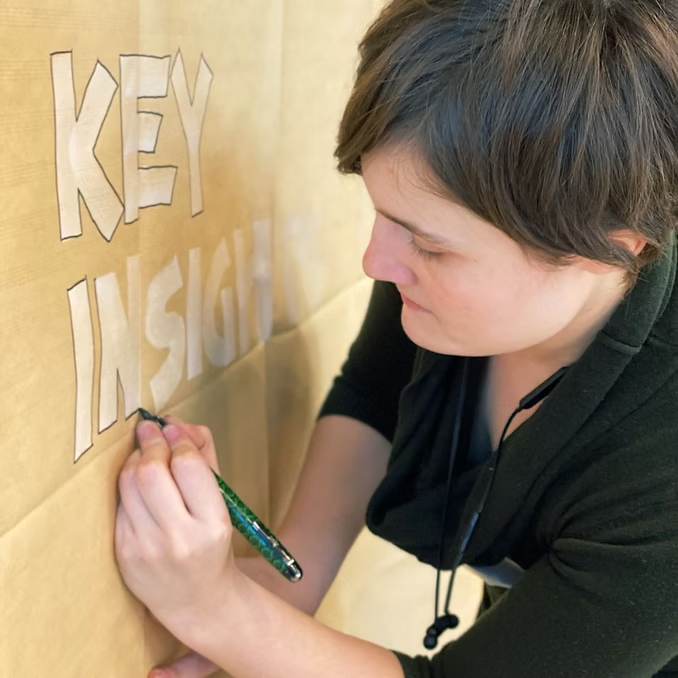
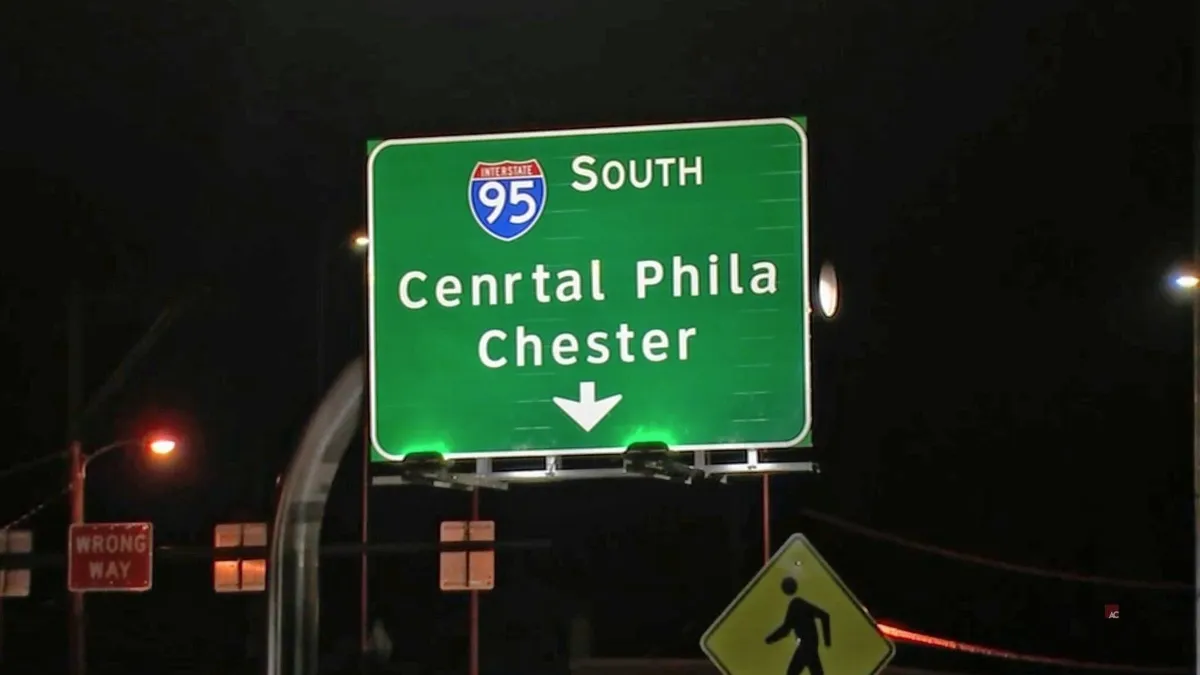
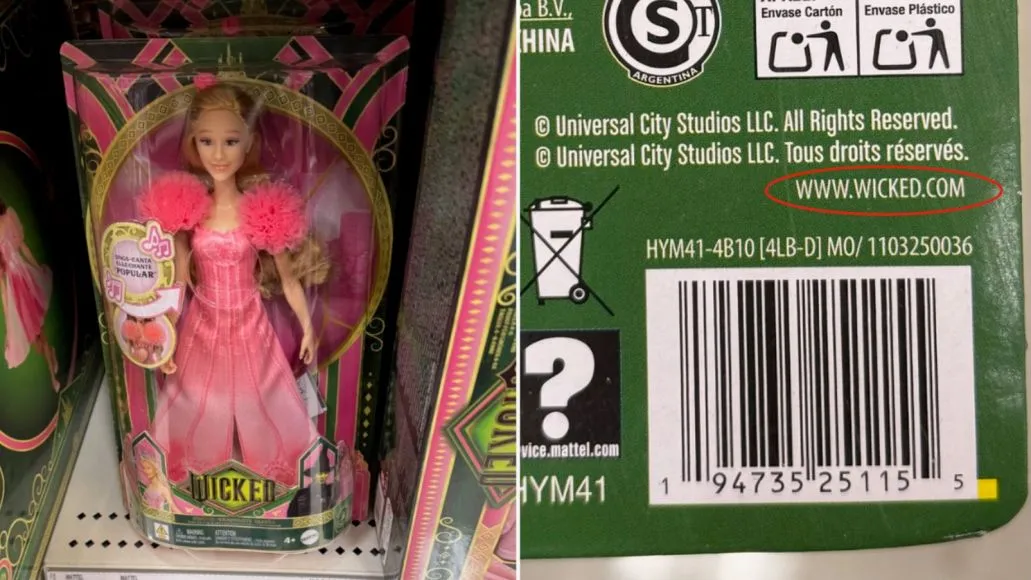
How to Spell Check Text in Images, JPGs, PNGs, and Screenshots
Need to spell check a picture before publishing? This guide explains a practical workflow for proofreading images, where OCR helps, and how to catch mistakes in final graphics.
The fastest method
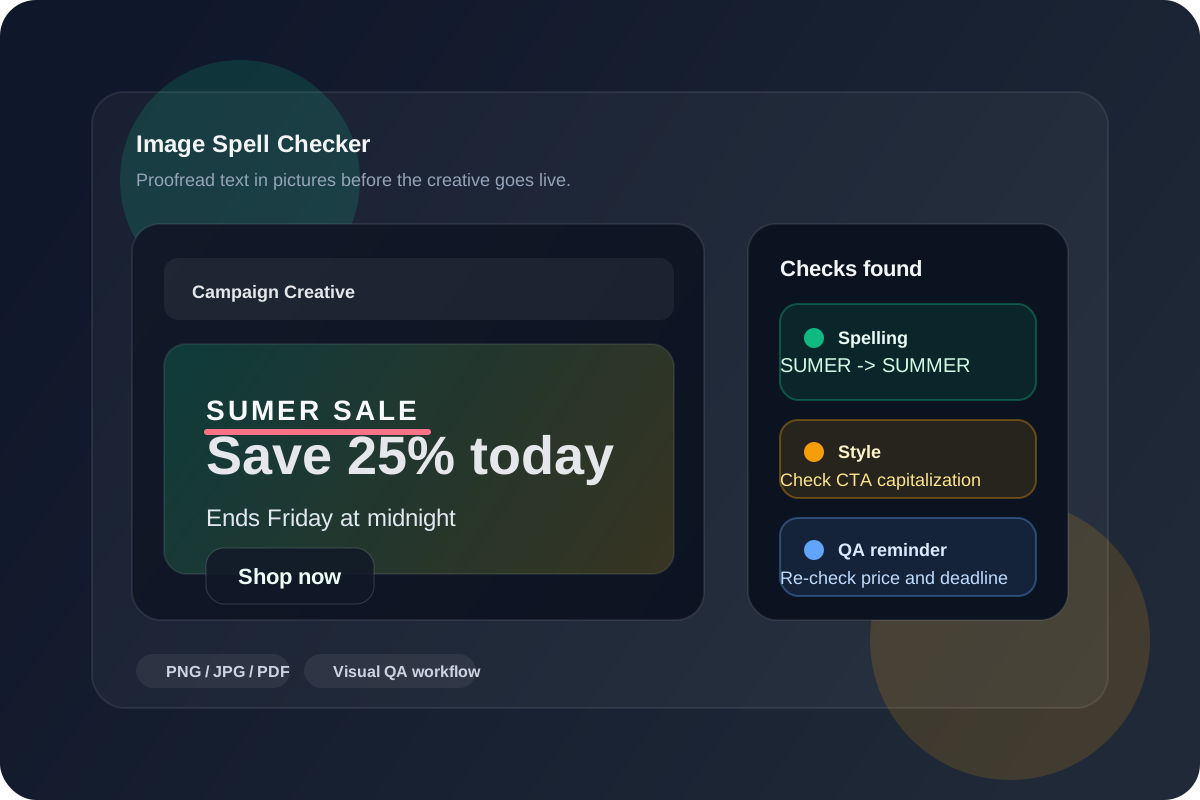
Use OCR when you only need to copy the words. Use an image spell checker when you need to find spelling, grammar, punctuation, and copy problems in the final JPG, PNG, screenshot, or graphic while keeping the visual context.
If you have ever searched for an image speller, a tool to spell check a picture, or software for proofreading images, you are trying to solve the same problem: checking text after it has already been baked into a graphic. An image spell checker reads the words inside the final PNG, JPEG, screenshot, or ad creative so you can review the exact asset your audience will see.
That matters because many mistakes are introduced after the copy is supposedly done. They show up during design handoff, in last-minute headline changes, in social media crops, and in exported graphics that a normal document spellchecker cannot read. That is also why modern design proofing is different from proofreading a Word doc. Teams need to review the final visual, not just the source text.
What is an image spell checker?
An image spell checker is a tool that analyzes text inside an image instead of text inside a document editor. In practice, that means uploading or scanning a flattened asset and checking for spelling mistakes, grammar problems, awkward phrasing, missing punctuation, and even inconsistent capitalization directly in context. If your team publishes banners, social posts, email graphics, packaging, slide screenshots, or ad creatives, this kind of tool is much closer to the real QA problem you are trying to solve.
Why regular spellcheck misses text in pictures
Traditional spellcheckers are helpful earlier in the writing process, but they usually break down once the copy becomes part of the design. Here is why:
- The text is flattened: Once the design is exported as a JPG or PNG, the words are no longer editable text to most proofreading tools.
- Layout changes meaning: A phrase that looked fine in a document can read differently when it is broken across lines or placed next to a CTA button.
- Last-minute edits are common: Teams often change a price, deadline, promo code, or headline in the design file and forget to re-run QA on the finished export.
- Visual workflows are fragmented: As we covered in Why Typos in Marketing Graphics Are More Common Than You Think, copywriters, designers, and QA reviewers are often working in separate tools and at different stages.
How to spell check text in pictures
A dependable workflow usually looks like this:
- Start with the final export. Review the PNG, JPG, PDF, or screenshot that is actually going to be published. This is the version that matters for SEO, brand trust, and campaign performance.
- Extract the text when you need a quick read. If you only need the raw copy, an image to text tool can help you pull the words out fast. This is useful for grabbing the copy, comparing versions, or sharing it with a teammate.
- Review the words in context. After extraction, compare the copy back against the image itself. This is the step many teams skip, and it is usually where layout-driven mistakes are missed.
- Check the details that cost the most. Look closely at product names, promo codes, prices, dates, disclaimers, CTA buttons, and branded terminology. These are often more damaging than a simple typo.
- Run one more pass after revisions. Every design tweak is a chance to reintroduce an error. Re-check the final version before it goes live.
If you want a broader walkthrough, we already covered the bigger process in How to Verify Text in Images. The short version is that OCR is helpful, but image QA works best when you can still inspect the finished visual.
When OCR helps and when it falls short
OCR is useful when you need to convert an image into text quickly. It is great for grabbing a headline from a screenshot, copying body text out of a flyer, or feeding the copy into another review step. But OCR alone does not tell you whether the text still makes sense in the visual. It may lose line breaks, ignore hierarchy, misread stylized letters, or strip away the surrounding context that makes a phrase correct or incorrect. That is why a basic extractor and a true image spell checker solve related, but different, problems.
What to look for in graphic proofreading software
If you are comparing tools for proofreading image-based copy, these features matter most:
- Context-aware suggestions: The tool should do more than find misspellings. It should help catch grammar issues and awkward phrasing inside real design layouts.
- Support for final creative formats: You want to check flattened exports, not just source files.
- Fast repeatable workflows: Bulk uploads, watch folders, or automated review steps matter if your team ships creative every day.
- Clear review output: The best tools make it easy to see what was flagged and where it appears in the graphic.
- Practical team fit: If a tool slows down designers or QA reviewers, it will not get used consistently.
Common mistakes worth checking before you publish
The obvious spelling error is only one part of the job. Teams publishing marketing creative should also check for missing punctuation, inconsistent capitalization, duplicated words, broken line breaks, mismatched dates, and subject-verb agreement in short headlines. If your work includes paid social, this is also a good time to review the patterns we covered in 5 Common Grammar Mistakes in Social Media Ads.
A practical workflow for teams publishing lots of creative
For low volume work, you can get pretty far with a mix of OCR, manual review, and a final checklist. But if your team is constantly publishing graphics, email banners, landing page visuals, or social ads, manual review alone becomes fragile. That is where a dedicated tool like Gard starts to make sense. You can proof the final asset itself, build a repeatable workflow around visual QA, and reduce the chances that a typo slips through because it only existed in the exported design.
If your goal is simply to pull copy from a screenshot, start with the Image to Text. If your goal is to catch errors before the creative goes live, use Gard's image spell checker workflow to review the finished visual in context.
Ready to check the actual graphic?
The guide explains the process; Gard's image spell checker performs the automated first pass on your final creative.
Use the image spell checkerDisclaimer: Gard provides automated design proofing powered by advanced AI. While highly accurate, we advise users to always conduct a final manual review of high-stakes business, medical, or legal graphics before sending to production.