Image Text Checker: How to Review Text in Images Before You Publish
An image text checker should do more than extract words. Learn how to review text in finished graphics without losing visual context.
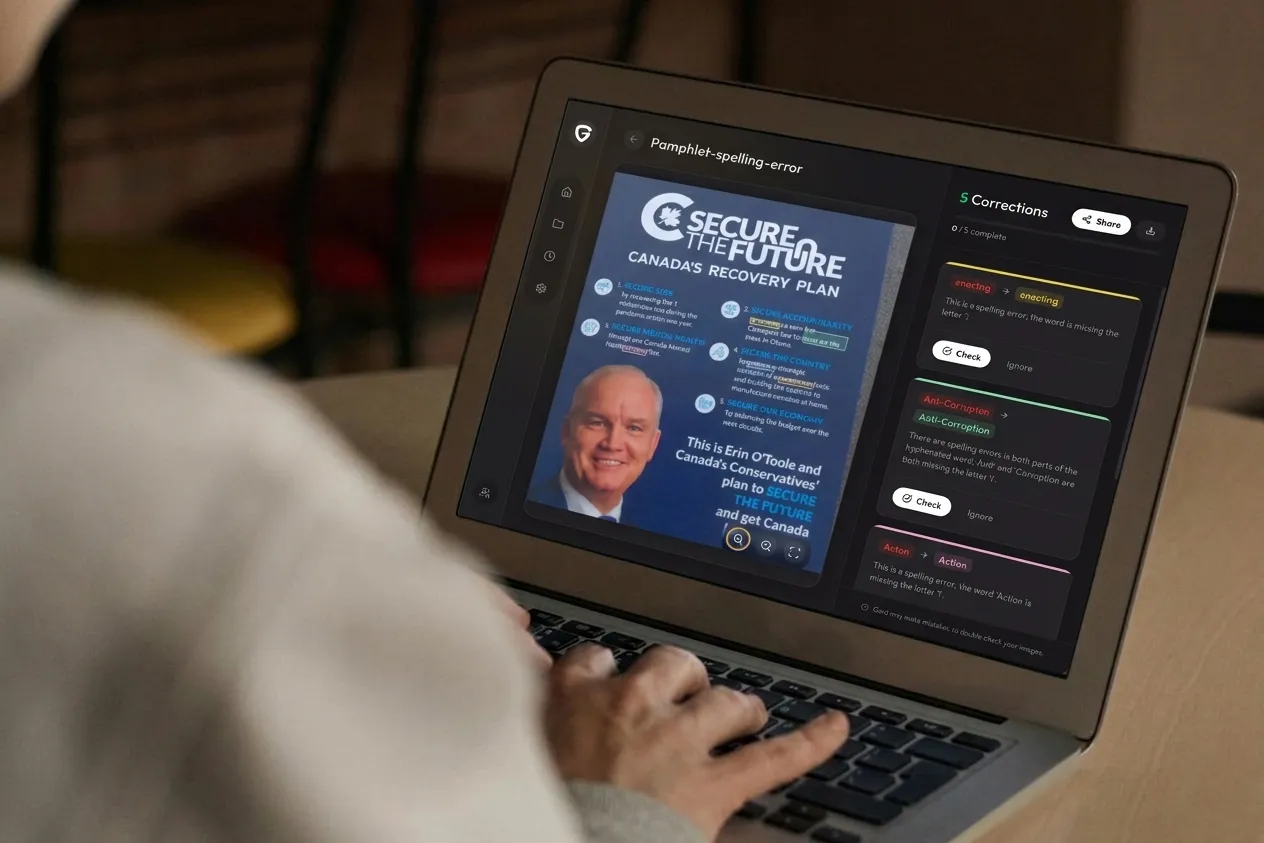
An image text checker helps you inspect words that are already inside a finished visual: a JPG, PNG, screenshot, email banner, ad creative, packaging proof, slide export, or PDF. The useful question is not only "can this tool read the text?" It is "can this tool help me catch the mistake before customers see the final asset?"
That distinction matters. Some tools simply extract copy from an image. Others check spelling and grammar. The strongest workflow does both, then brings the review back to the visual itself so you can spot line-break issues, wrong prices, odd phrasing, brand-term mistakes, and text that only becomes risky in context. This guide focuses on choosing and using an image text checker as a practical QA step, not just another OCR shortcut.
What people mean by an image text checker
The phrase can describe a few different jobs, and mixing them up is where teams lose time.
- Image to text extraction: The tool reads text from a picture and turns it into editable copy. This is useful when you need to copy text from a screenshot, compare versions, or archive visual content.
- Image spell checking: The tool looks for spelling, grammar, punctuation, and usage problems in the text it finds. This is closer to proofreading than extraction.
- Visual text QA: The tool helps you review the text inside the design context, including layout, hierarchy, CTAs, disclaimers, and the surrounding creative.
If you only need the raw words, start with an image to text tool. If the asset is about to be published, printed, sent, or shown to a client, you need a checker that supports the full QA pass.
When a basic OCR checker is enough
OCR is enough when the output is not the final approval surface. It works well when you need to pull copy from a screenshot, reuse text from an old flyer, search scanned notes, grab text from a receipt, or quickly compare two exported drafts. In those cases, accuracy and speed matter most.
A simple extractor is also useful early in a workflow. You can convert the image text to plain copy, paste it into a document, and make edits before the design is final. The risk starts when the design keeps changing after that step. A corrected paragraph in a document does not guarantee the exported banner, packaging front, or ad variation is still correct.
When OCR is not enough
OCR strips the words away from the visual. That is helpful for copying, but dangerous for final QA. Many mistakes only appear when the text is read inside the design.
- Line breaks can change meaning. A headline may become awkward or misleading after it wraps across two lines.
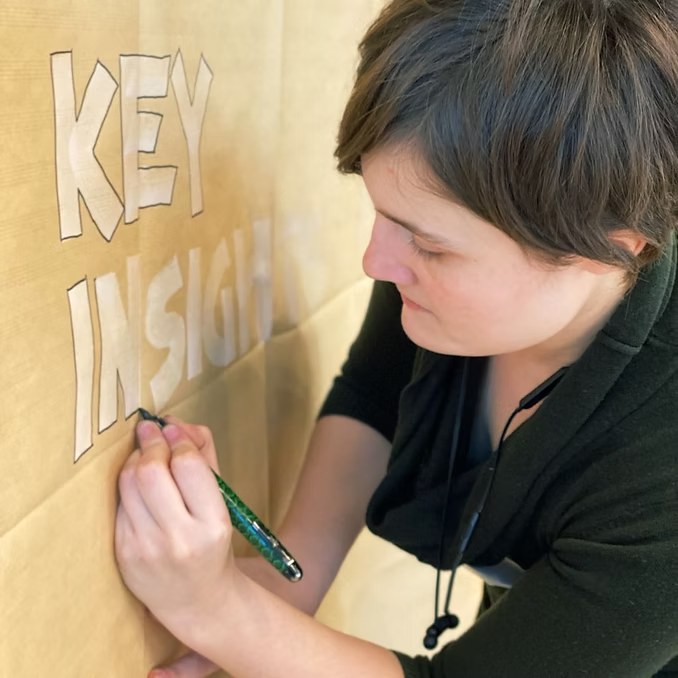
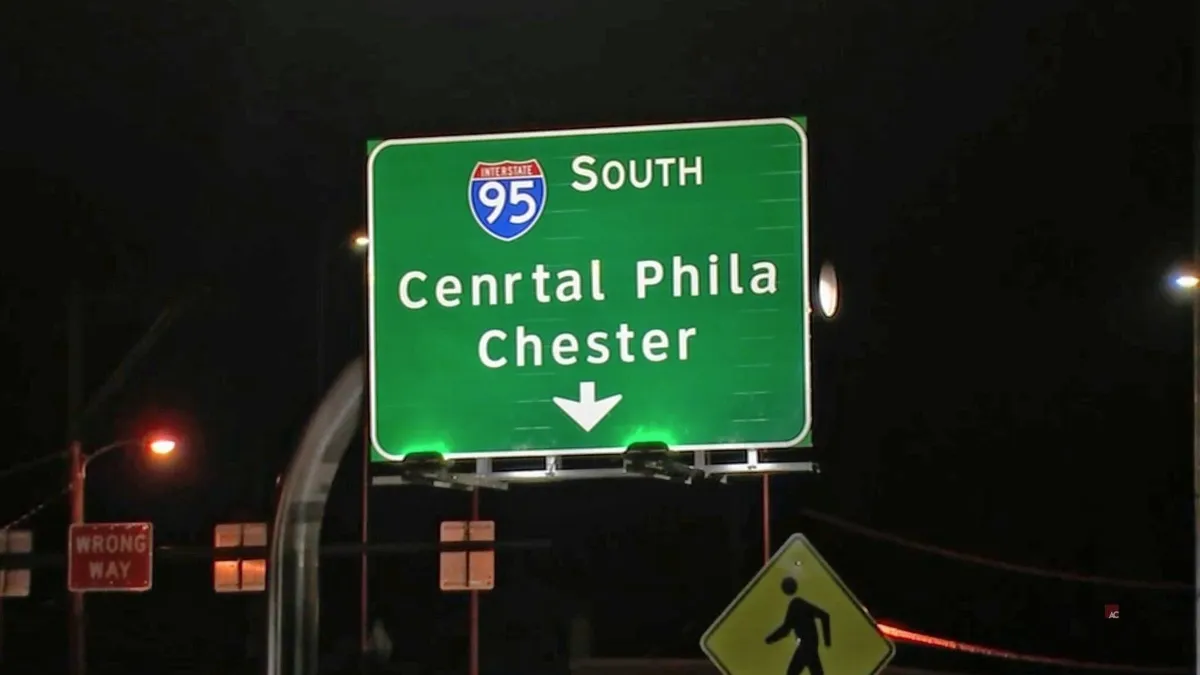
- Stylized type can hide misspellings. All caps, tight tracking, shadows, and curved text make familiar words easier to skim past.
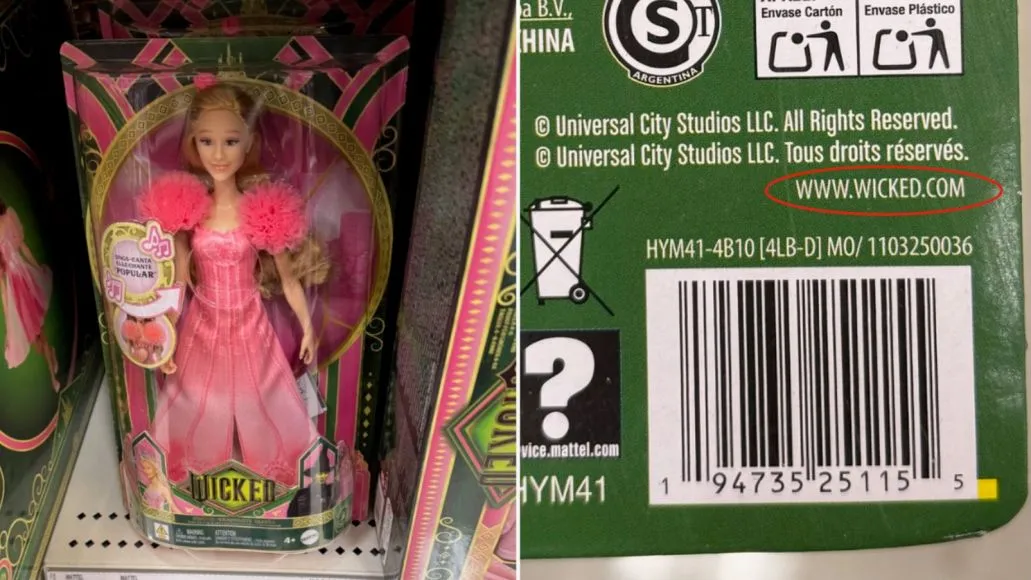
- Details carry outsized risk. Prices, dates, URLs, coupon codes, phone numbers, product names, and legal copy are often short but expensive to get wrong.
- Design revisions create new errors. A last-minute CTA, translated headline, resized creative, or vendor recreation can introduce mistakes after earlier copy was approved.
- Context changes the correction. A phrase that looks fine in plain text may be too vague beside a button, next to a product image, or under a compliance disclaimer.
That is why an image spell checker is different from a plain OCR tool. It is built for reviewing the finished visual, where the mistake actually lives.
A practical workflow for checking text in images
- Collect the final exports. Check the exact PNG, JPG, PDF, or screenshot that will be published, not only the source copy or design file.
- Run text extraction first. Use OCR to get a complete read of the visible words. This helps you catch text that is small, rotated, or easy to miss.
- Compare against the approved source. Look for missing words, old prices, outdated dates, wrong product names, and copy that was changed in the design file but not approved.
- Check high-risk tokens character by character. URLs, QR destinations, promo codes, support emails, phone numbers, SKUs, ingredient names, addresses, and disclaimers deserve a separate pass.
- Review grammar in context. Read the design as a viewer would: headline, supporting copy, CTA, fine print, then any secondary labels.
- Recheck after every revision. Cropping, localization, resizing, and export settings can all change the final text surface.
- Keep a review trail. Save notes, screenshots, or scan results so stakeholders know which asset version was checked.
What a good image text checker should catch
| Issue | Why it matters | Example check |
|---|---|---|
| Spelling and typos | Obvious mistakes damage trust fast. | Product names, headlines, captions, labels. |
| Grammar and usage | Short marketing copy often hides homophone and agreement errors. | Your vs. you are, its vs. it is, subject-verb agreement. |
| Punctuation | Missing punctuation can change tone, clarity, or compliance meaning. | CTA copy, disclaimers, numbered claims. |
| Brand consistency | Brand terms are easy to miss because reviewers already know them. | Product capitalization, trademark styling, campaign names. |
| Operational details | Small strings can create customer support or production problems. | Dates, prices, QR codes, URLs, SKUs, phone numbers. |
How Gard fits into this workflow
Gard is built for the moment when text has become part of a visual asset. Instead of treating the image as plain extracted copy, Gard reads the text inside the graphic and flags issues such as spelling mistakes, grammar problems, punctuation errors, awkward phrasing, and context problems in the finished design.
That makes it useful for teams reviewing social ads, email banners, landing page graphics, packaging proofs, app screenshots, presentation exports, and client deliverables. For one-off checks, you can upload or paste an image link. For higher-volume creative work, Gard's desktop workflow and Watch Folders help make image text checking repeatable whenever new exports are saved.
Final checklist before you publish
- Did you check the final exported image, not only the copy document?
- Did you inspect every price, date, URL, promo code, and product name?
- Did you review the headline, CTA, and fine print in visual order?
- Did you re-run the check after localization, resizing, cropping, or vendor changes?
- Did someone approve the exact file that will go live?
Image text checker FAQ
Is an image text checker the same as OCR?
Not always. OCR reads text from an image. A stronger image text checker uses OCR as one step, then helps review spelling, grammar, punctuation, and visual context.
Can I check text in a JPG or PNG?
Yes. JPG and PNG files are exactly where this workflow matters, because the text is flattened into pixels and traditional document spellcheckers cannot inspect it directly.
What is the best way to check text in marketing images?
Use a two-step workflow: extract the text so nothing is missed, then review the final visual with an image-focused checker like Gard. That gives you the speed of OCR without losing the context of the design.
Disclaimer: Gard provides automated design proofing powered by advanced AI. While highly accurate, we advise users to always conduct a final manual review of high-stakes business, medical, or legal graphics before sending to production.