Proofreading Software: How to Choose the Right Tool in 2026
Not all proofreading software does the same job. Compare the main categories, see the blind spot most tools share, and learn how to choose.
If you have searched for proofreading software, you have probably noticed that the results pull in very different products: grammar checkers, browser writing assistants, document editors, OCR readers, and visual QA tools for designers. They all promise to catch mistakes, but they do not all check the same kind of text. Choosing well starts with matching the tool to the job, not picking the most famous brand.
This guide breaks proofreading software into clear categories, explains the one blind spot most tools share, and gives you a practical checklist for choosing. It is written for marketers, designers, agencies, and anyone whose final work is a published asset rather than a draft in a text editor.
What proofreading software actually does
Proofreading is the final review of text for spelling, grammar, punctuation, and consistency before it is published. It used to happen on paper in a print room. Today, proofreading software automates the first pass: it scans your text, flags likely errors, and suggests fixes so a human reviewer can move faster and miss less.
The important word is first pass. Good proofreading software does not replace judgment. It surfaces candidates — a misspelling, a doubled word, a missing comma, an awkward construction — and you decide. The best tools save time precisely because they narrow your attention to the few spots that need a human look.
The four categories of proofreading software
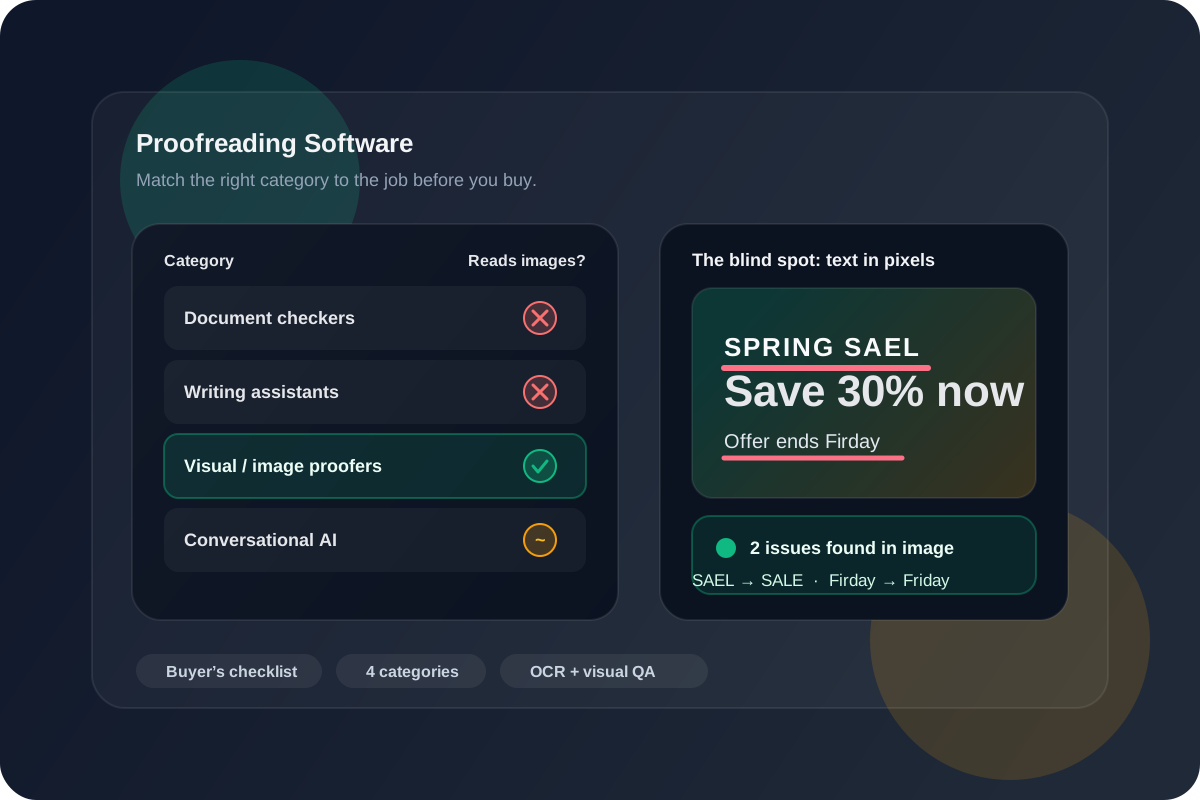
Most products fall into one of four buckets. Knowing which bucket you are shopping in prevents the most common mistake: buying a document tool to solve a visual problem.
| Category | What it checks | Best for |
|---|---|---|
| Document & grammar checkers | Spelling, grammar, punctuation, and style inside editable text. | Articles, reports, emails, and long-form writing. |
| Writing assistants | Real-time suggestions as you type, plus tone and clarity rewrites. | Drafting in a browser, docs app, or email client. |
| Visual / image proofreaders | Text that is baked into a finished graphic, in its design context. | Ads, packaging, banners, slides, and screenshots. |
| Conversational AI review | Open-ended feedback you request in a chat interface. | Ad-hoc questions and second opinions, not repeatable QA. |
A writing assistant is excellent while you draft. But the moment your words leave the document and become part of a designed image, most proofreading software loses sight of them. That is the gap worth understanding before you buy.
The blind spot most proofreading software shares
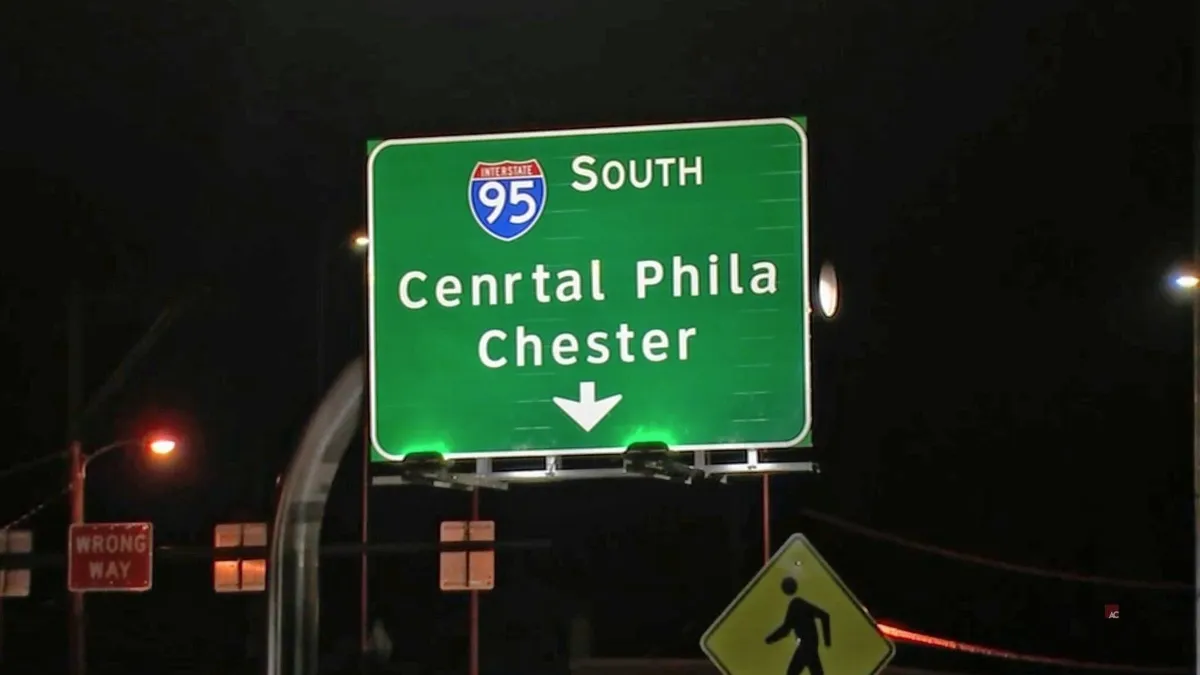
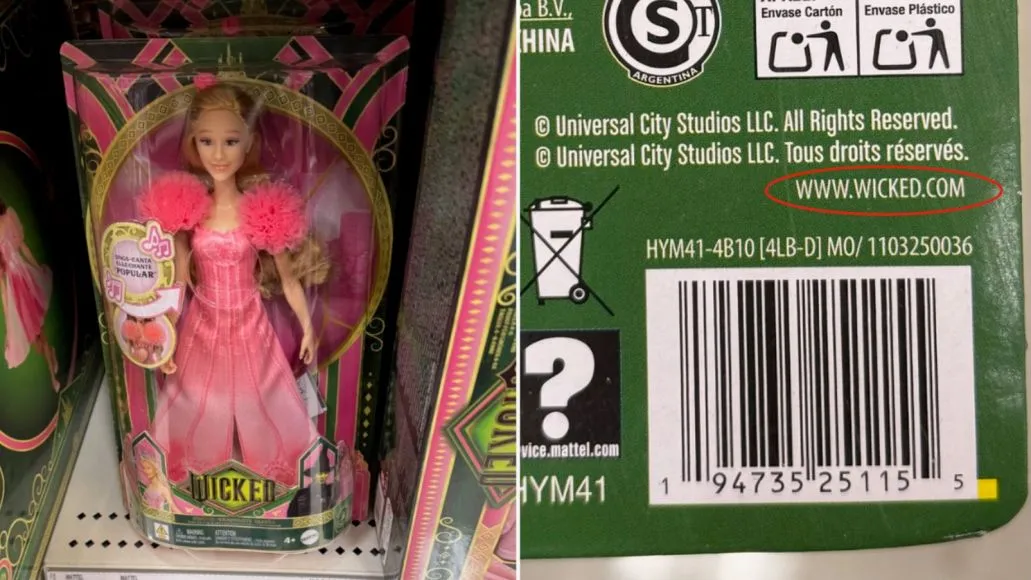
Document checkers read editable characters. A headline rendered inside a JPG or PNG is not editable text — it is pixels. Your word processor cannot underline a typo it cannot read, which is why so many embarrassing mistakes survive review and reach a billboard, a package, or a paid ad.
To check text inside an image, software first needs to read it. That is the job of optical character recognition (OCR): converting the picture of text back into characters a tool can analyze. If you only need the raw words, a plain image to text extractor is enough. If the image is about to be published, you need more than extraction — you need a checker that reviews the words inside the design.
- Stylized type hides errors. All caps, tight tracking, and decorative fonts make familiar words easy to skim past.
- Line breaks change meaning. A headline can become awkward or misleading once it wraps across two lines.
- Small strings carry big risk. Prices, dates, URLs, promo codes, and phone numbers are short but expensive to get wrong.
- Revisions create new errors. A resized creative, a translated headline, or a vendor recreation can introduce mistakes after the copy was approved.
This is exactly why an image spell checker belongs in a different category from a document tool. For a deeper look at this workflow, see our guide to the image text checker.
How to choose proofreading software: a feature checklist
Once you know your category, compare tools on capabilities that actually affect your workflow. Use this table as a shortlist scorecard.
| Feature | Why it matters | Ask the vendor |
|---|---|---|
| File types | Your final asset may be a PNG, JPG, PDF, or slide, not a document. | Which formats can it read directly? |
| Reads images | Text in graphics is invisible to most checkers. | Does it use OCR and review text in the design? |
| In-context location | A flag is only useful if you can find where it lives. | Does it mark the issue on the visual itself? |
| Batch & automation | Volume work needs repeatable checks, not one-offs. | Can it scan folders or watch for new exports? |
| Collaboration | Approvals need a shareable, trackable record. | Can I export or share results with stakeholders? |
| Languages | Localized campaigns multiply the chance of error. | Which languages does it proof reliably? |
| Privacy | Unreleased creative is sensitive. | How is my content stored and handled? |
A quick buyer's checklist
- Name the surface. Is your final output a document or a designed image? That decides the category.
- Check the formats. Confirm the tool reads the exact files you publish, not just plain text.
- Test on a real asset. Run a finished export with a known typo and see whether the tool catches and locates it.
- Mind the high-risk tokens. Verify it flags prices, dates, URLs, and promo codes, not only obvious spelling.
- Plan for volume. If you ship many variations, prioritize batch scanning and automation.
- Confirm the record. Make sure you can share or save proof that the exact final file was reviewed.
Where Gard fits
Gard is proofreading software built for the visual category — the moment your text has become part of a finished graphic. Instead of treating the image as plain extracted copy, Gard reads the words inside the design and flags spelling, grammar, punctuation, and context problems, then marks each issue on the visual so you can fix it fast. For teams shipping many exports, batch scanning and Watch Folders make the review repeatable.
That makes it a strong fit for the work covered in our guides to design proofing, the packaging artwork checklist, and the email QA checklist. If you specifically want to compare image text-checking tools side by side, the independent rundown at ImageTextCheck.com ranks the main options by the job they actually do.
Proofreading software FAQ
Is proofreading software the same as a grammar checker?
Not quite. A grammar checker is one type of proofreading software focused on editable text. Proofreading software is the broader category, which also includes visual tools that review text inside finished images.
Can proofreading software check text inside images?
Most cannot, because document checkers only read editable characters. You need a visual proofreader that uses OCR to read the text in the graphic and then reviews it in context, like Gard.
What is the best proofreading software for design teams?
Design teams should prioritize tools that read the final exported image, locate each issue on the visual, and support batch checks. A document-only grammar checker is not enough once copy lives inside artwork.
Is free proofreading software good enough?
For low-stakes drafts, free tools can be fine. For published assets — ads, packaging, or anything printed at volume — the cost of a single missed typo usually outweighs the price of software that checks the final file.
Disclaimer: Gard provides automated design proofing powered by advanced AI. While highly accurate, we advise users to always conduct a final manual review of high-stakes business, medical, or legal graphics before sending to production.